Building My First Chrome Extension: A Beginner's Guide to Browser Extension Development
I've been building web apps for years — React, Next.js, Spring Boot, you name it. But browser extensions? That was uncharted territory. I'd installed hundreds of them, used them daily, but never stopped to think about how they actually work under the hood.
What drew me in wasn't a specific feature I needed. It was curiosity. I wanted to understand a completely different runtime environment — one that lives inside the browser, has its own APIs, its own lifecycle, and its own set of constraints.
So I spent last weekend diving into Chrome extension development. If you're a web developer who's never built an extension before, this post is for you. I'll walk you through the concepts I learned, the things that tripped me up, and the patterns that actually work — all in plain English.
What is a Chrome Extension, Exactly?
Think of the Chrome extensions you already use. Ad blockers, password managers, screenshot tools, dark mode toggle — those little icons sitting in your browser toolbar. Every one of them is a Chrome extension.
At its core, a Chrome extension is surprisingly simple: just a folder with HTML, CSS, and JavaScript files, plus one special file called manifest.json that tells Chrome what your extension does and what permissions it needs.
What makes it different from a regular website? Special powers. A normal website lives in its own little bubble — it can't touch other websites, can't see your tabs, can't store data permanently. An extension can do all of that and more:
- Read and change the content of any website you visit
- Make API calls to external services (without CORS issues)
- Store data that persists across browser sessions
- Run code in the background, even when no page is open
- Add buttons, badges, and UI elements to existing websites
Think of it like this: A website is a guest in the browser — polite, confined to its own room. An extension is a resident — it has a keycard, it can walk into any room, and it has access to the building's back office.
The Architecture: Four Pieces of the Puzzle
Every Chrome extension is built from a combination of these four components. You don't need all of them for every project, but understanding how they fit together is the key to building anything useful.
Let's break each one down like we're explaining it to a friend.
1. The Manifest — Your Extension's ID Card
The manifest.json file is the first thing Chrome reads. It's like an ID card for your extension — it tells Chrome the name, version, what the extension does, and what it's allowed to do.
Here's a real example (simplified from the one I built):
{
  "manifest_version": 3,
  "name": "My First Extension",
  "version": "1.0.0",
  "description": "Does something cool on specific websites",
  "permissions": ["storage", "activeTab"],
  "background": {
    "service_worker": "background/service-worker.js",
    "type": "module"
  },
  "content_scripts": [{
    "matches": ["https://example.com/*"],
    "js": ["content/content.js"],
    "css": ["content/content.css"]
  }],
  "action": {
    "default_popup": "popup/popup.html"
  }
}
Let me walk you through what each part means:
manifest_version: 3— Always use 3. This is the latest version (V3), and V2 is deprecated.permissions— What your extension is allowed to do."storage"lets you save data."activeTab"gives you access to the current tab when the user clicks your icon. Only ask for what you need.background— Points to your service worker file (more on this below).content_scripts— Tells Chrome: "When the user visits example.com, inject these JavaScript and CSS files into the page."action— What happens when the user clicks your extension icon. Here, it opens a popup HTML page.
Don't ask for too many permissions. When someone installs your extension, Chrome shows them a list of everything it can do. If you ask for broad permissions like "access all websites," people will hesitate. Only request what you genuinely need.
2. Content Script — Your Extension's Eyes and Hands
A content script is JavaScript that runs inside a web page. It can see the page's HTML, read text, click buttons, and inject new UI elements. It's like having a tiny robot standing on the page, reading everything and making changes.
Here's the important part: content scripts run in an isolated world. They can see the page's HTML, but they can't see the page's JavaScript variables, and the page can't see the extension's code. This is a safety feature — it prevents the extension and the website from interfering with each other.
Content scripts are great for things like:
- Highlighting specific elements on a page
- Adding extra buttons or information panels
- Auto-filling forms
- Scraping data from the page
You can also inject CSS alongside your content script (that's what the "css" field in the manifest does). But there's a catch:
Your CSS shares the page's namespace. Any styles you inject can clash with the host website's styles — and vice versa. A generic class name like .button or .title in your CSS could accidentally override the website's styling. To avoid this, prefix all your class names (e.g., .ujm-badge, .ujm-container) or use Shadow DOM for complete CSS isolation. Shadow DOM creates an encapsulated DOM subtree where your styles cannot leak out and the page's styles cannot leak in.
No imports allowed. This one surprised me the most. Content scripts cannot use ES module imports — you can't write import { helper } from './utils.js'. Everything your content script needs must either be in the same file or loaded separately through the manifest. Keep this in mind when organizing your code.
3. Service Worker — Your Extension's Brain
While the content script works on the page's surface, the service worker works behind the scenes. It runs independently of any web page — it can't see or touch the DOM, but it can do things content scripts can't:
- Make API calls to external services
- Store and retrieve data from
chrome.storage - Run timers and scheduled tasks
- Communicate with content scripts
Think of them as a team: the content script is the field agent (on the page, collecting data), and the service worker is the back office (processing data, talking to APIs, making decisions).
They talk to each other through message passing:
// In your content script (field agent):
chrome.runtime.sendMessage({ type: 'SCORE_JOB', data: jobInfo });

// In your service worker (back office):
chrome.runtime.onMessage.addListener((message, sender, sendResponse) => {
  if (message.type === 'SCORE_JOB') {
    // Process the job and send the result back
    const result = doSomethingWith(message.data);
    sendResponse({ score: result });
  }
  return true; // "I'll respond later (asynchronously)"
});
4. Popup and Options Page — Your Extension's Face
The popup is the little window that appears when you click your extension's icon in the toolbar. It's a regular HTML page — you can put buttons, text, stats, whatever you want. It closes automatically when the user clicks outside of it, so keep it simple.
The options page is a full-sized page that opens in a new tab. This is where you put settings forms, configuration panels, and anything that needs more space. You declare it in your manifest with "options_ui".
Both the popup and options page can read from chrome.storage directly — they don't need to ask the service worker.
How to Load and Test Your Extension
This part is refreshingly simple. No npm install, no npm run dev, no build step.
- Create a folder anywhere on your computer (e.g.,
my-extension/) - Add a
manifest.jsonfile inside it - Open Chrome and go to
chrome://extensions/ - Enable Developer mode (toggle in the top-right corner)
- Click "Load unpacked" and select your folder
That's it. Your extension is now installed and running. To see changes:
| What you changed | How to see the update |
|---|---|
| Content script or CSS | Refresh the website page |
| Service worker | Click "Reload" on the extension card at chrome://extensions/ |
| Popup | Close and reopen the popup |
| Options page | Close and reopen the tab |
| manifest.json | Click "Reload" on the extension card |
This is your entire dev loop. Edit a file, reload, see the change. No hot module replacement, no webpack, no waiting for a build. It's the fastest feedback loop I've ever had in a project.
MutationObserver: How to Watch a Page That Keeps Changing
Here's a problem you'll run into almost immediately: modern websites don't load all at once. When you scroll, new content appears. When you click a tab, the content changes. When you filter, the list updates.
A simple document.querySelectorAll on page load will only find what's visible right now. It won't catch anything that appears later.
The solution is MutationObserver — a built-in browser API that watches the DOM and notifies you whenever anything changes. It's like hiring a guard who watches the page and taps you on the shoulder every time a new element appears.
Here's how I used it to watch for new job cards appearing on a page:
// Keep track of cards we've already processed
// WeakSet is important here — I'll explain why below
const processedCards = new WeakSet();

// Create the observer
const observer = new MutationObserver((mutations) => {
  for (const mutation of mutations) {
    for (const node of mutation.addedNodes) {
      // Only care about HTML elements (skip text nodes, comments, etc.)
      if (node.nodeType !== Node.ELEMENT_NODE) continue;

      // Is this new node a job card, or does it contain one?
      const card = node.matches?.('[data-testid="job-tile"]')
        ? node
        : node.querySelector('[data-testid="job-tile"]');

      // If we found a card and haven't processed it yet, process it
      if (card && !processedCards.has(card)) {
        processedCards.add(card);
        processCard(card);
      }
    }
  }
});

// Start watching the entire page
observer.observe(document.body, { childList: true, subtree: true });
Three things to know about this pattern:
1. Use WeakSet, not Set, for tracking elements. A WeakSet holds weak references — when the browser removes a DOM element from the page, the WeakSet automatically forgets about it. A regular Set would hold onto those references forever, slowly leaking memory on pages that stay open for a long time.
2. Expect the observer to fire a lot. A single page update can trigger dozens of mutations, sometimes for the same element. That's why we check !processedCards.has(card) — to avoid processing the same element twice.
3. Always use subtree: true. New elements are often nested inside containers that already exist on the page. Without subtree: true, the observer would only notice changes to document.body's direct children and miss everything deeper in the tree.
The Service Worker Has a 30-Second Attention Span
This was the concept that took me the longest to wrap my head around.
In Manifest V3, service workers are event-driven. Here's how it works: Chrome starts your service worker when something happens (a message arrives, a timer fires, a tab updates). Your code runs, does its thing, and then Chrome kills the service worker after about 30 seconds of inactivity.
Why does this matter? Because any variables you define at the top level of your service worker get wiped clean when it shuts down. When Chrome starts it back up, everything starts from zero.
// BAD: This counter resets every time the service worker restarts
let requestCount = 0;

// GOOD: Persist the count in storage
async function incrementCount() {
  const data = await chrome.storage.local.get('count');
  const newCount = (data.count || 0) + 1;
  await chrome.storage.local.set({ count: newCount });
  return newCount;
}
This forces you to think like you're writing a serverless function — anything important should live in chrome.storage, not in a variable.
The mental model: Treat your service worker like a light that turns on when someone enters the room and turns off when they leave. It doesn't remember what happened last time. If you need to remember something, write it down (in storage).
In practice, I kept a simple in-memory queue for managing API calls (max 3 at a time). If the service worker shuts down and restarts, the queue is empty — but that's fine, because the content script will just send new requests. Not everything needs to be persisted.
Storing Data: Three Options
Chrome extensions give you three ways to store data, and picking the right one matters:
| Storage Type | How Much | Syncs Across Devices? | Best For |
|---|---|---|---|
chrome.storage.local | 10MB (expandable) | No | Big stuff: logs, cached data, history |
chrome.storage.sync | 100KB total (8KB per item) | Yes | Small stuff: user settings, preferences |
chrome.storage.session | 10MB | No | Temporary stuff: tab-specific data |
The easiest way to understand this: use local for anything big, use sync for user preferences that should follow them across devices, and use session for temporary data that resets when the browser closes.
The sync option is really convenient — set your preferences on your laptop, and they're there on your desktop. But watch out for the 100KB limit. If you try to store a large object (like a cached API response), it'll silently fail.
Storage quotas can sneak up on you. chrome.storage.local defaults to 10MB. If you need more (e.g., caching lots of data), add "unlimitedStorage" to your manifest's permissions array. Without it, writes will fail silently once you hit the cap.
Here's what the API looks like:
// Save some settings
await chrome.storage.sync.set({
  username: 'abid',
  theme: 'dark',
  maxResults: 50
});

// Read them back
const data = await chrome.storage.sync.get(['username', 'theme']);
console.log(data.username); // 'abid'

// Listen for changes (works in any part of your extension)
chrome.storage.onChanged.addListener((changes, area) => {
  if (changes.theme) {
    console.log('Theme changed to:', changes.theme.newValue);
  }
});
Use chrome.storage.onChanged in your content script to react to settings changes in real time. If the user changes a setting in the options page while a content script is running on a website, this listener lets the content script update immediately — no page refresh needed.
Making API Calls: Bypassing CORS the Easy Way
If you've built web apps, you've probably fought with CORS — the browser security rule that blocks websites from making requests to other domains. It's the reason you can't fetch data from api.github.com directly in your frontend without the server explicitly allowing it.
Chrome extensions sidestep this entirely. As long as you declare the domain in your manifest's host_permissions, your service worker can make requests to it freely:
{
  "host_permissions": [
    "https://api.openai.com/*",
    "https://api.example.com/*"
  ]
}
With this declared, your service worker can call fetch('https://api.openai.com/v1/...') without any CORS errors.
API calls belong in the service worker, not the content script. Content scripts inherit the website's origin, so they still get blocked by CORS. The service worker has the extension's origin, which bypasses CORS for domains listed in host_permissions.
This is one of the most powerful things about Chrome extensions — it makes them an excellent platform for building tools that integrate with external services like AI APIs, analytics platforms, or payment gateways.
Managing Multiple Requests: The Queue Pattern
Here's a scenario you'll likely run into: your extension needs to make multiple API calls. Maybe you're scoring 30 items on a page, and each one needs a separate request.
You don't want to fire all 30 at once. That'll hit API rate limits, waste money on paid APIs, and potentially overwhelm the service worker. Instead, you want a simple queue that processes a few requests at a time:
const MAX_CONCURRENT = 3;    // Process 3 requests at a time
let activeRequests = 0;
const queue = [];

// Add a new request to the queue
function enqueue(payload, sendResponse) {
  if (activeRequests < MAX_CONCURRENT) {
    processRequest(payload, sendResponse);
  } else {
    queue.push({ payload, sendResponse });
  }
}

// Check if we can start the next queued request
function drainQueue() {
  if (queue.length === 0 || activeRequests >= MAX_CONCURRENT) return;
  const next = queue.shift();
  processRequest(next.payload, next.sendResponse);
}

// Process a single request
async function processRequest(payload, sendResponse) {
  activeRequests++;
  try {
    const result = await callExternalAPI(payload);
    sendResponse(result);
  } catch (err) {
    sendResponse({ error: err.message });
  } finally {
    activeRequests--;
    drainQueue(); // Start the next one in line
  }
}
This is a simple but effective pattern. Each finished request pulls the next one from the queue. If the service worker restarts (remember the 30-second rule?), the queue resets — but that's fine, because new requests will come in naturally from the content script.
Key Learnings: What Surprised Me the Most
After building a full extension from scratch, here are the things that stood out:
No build tools required. I'm so used to npm install and webpack.config.js that starting a project by just creating a folder felt almost wrong. But that's genuinely all you need. Chrome loads your files directly. No bundler, no transpiler, no dev server.
Vanilla JavaScript is perfectly fine. I initially considered using React for the settings page. But a form with tabs and a few toggle switches doesn't need a framework. Plain HTML, CSS, and JavaScript with ES6 modules handle everything. The entire extension I built has zero dependencies.
The content script / service worker split is the main thing to learn. It's not technically hard — it's a mental model. You just need to remember: DOM work? Content script. API calls? Service worker. Storage? Either one. Long-lived state? Storage, not memory. Once this clicks, everything else follows naturally.
Start with the official docs. The Chrome Extensions documentation has gotten really good. It covers Manifest V3 patterns, has working code samples, and explains the reasoning behind design decisions. Many tutorials you'll find online still reference Manifest V2 patterns that no longer work.
You already know most of this. If you're a web developer, you know JavaScript, HTML, CSS, and the DOM. Chrome extensions use the same skills. The only new things to learn are the Chrome-specific APIs (chrome.storage, chrome.runtime, etc.) and the architectural patterns (content script vs. service worker). The learning curve is much smaller than you'd expect.
What I Built: Upwork Job Matcher
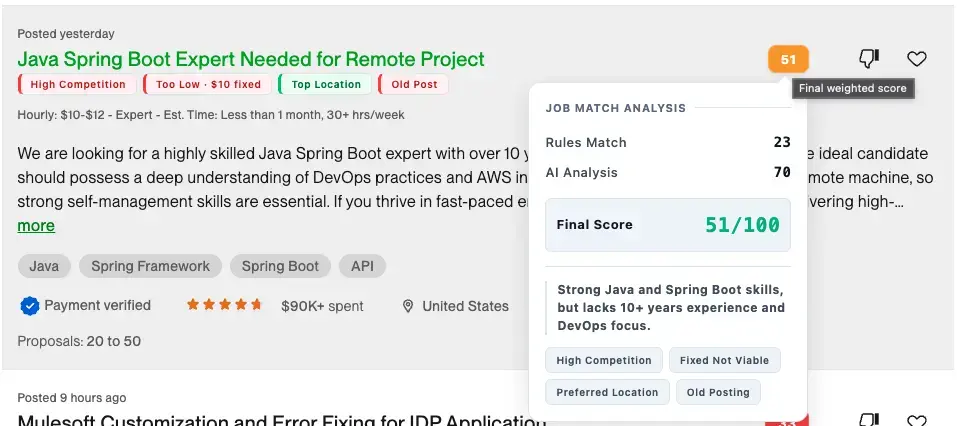
To apply everything I was learning, I built Upwork Job Matcher — a Chrome extension that scores job listings using a hybrid approach: fast rules-based analysis (budget, competition, location, posting time) combined with optional AI evaluation for deeper skills matching. Scores appear as color-coded badges directly on job cards.
Key features:
- Hybrid scoring: instant rules engine + optional LLM analysis
- Multiple AI providers: OpenAI, Anthropic, Gemini, and custom endpoints
- Custom scoring rules with configurable point values
- Settings page with dark mode, request logs, and token usage tracking
Tech stack: Vanilla JavaScript, Manifest V3, chrome.storage API, zero dependencies.
Check out the project:
- Source code: github.com/gitAbid/upwork-extension
- Landing page with screenshots & feature overview: gitabid.github.io/upwork-extension
Should You Build a Chrome Extension?
If you're on the fence, here's my honest take: yes, give it a shot. Here's why:
- You use the browser every day — Unlike most side projects that nobody sees, a Chrome extension solves your own problems immediately
- The learning curve is small — You already know JavaScript and the DOM. The only new things are a few Chrome-specific APIs
- No setup overhead — Create a folder, add a
manifest.json, load it in Chrome. That's your entire onboarding - It teaches you new patterns — The content script / service worker split forces you to think about boundaries, state management, and event-driven design in ways that regular web apps don't
- Browser APIs are powerful — Storage, tabs, network requests, cookies, alarms — you get access to capabilities that regular websites can only dream of
Start small. A content script that highlights a specific element on a page. A popup that shows the current page's title. A service worker that fetches data from an API. Build from there. The browser is your playground.
Tags
Related Posts

Kafka Streams Part 3: Making It Production-Ready
Take Kafka Streams to production — custom Serdes, event time, exactly-once processing, error handling with dead-letter queues, scaling, testing, and the mistakes everyone makes.

Kafka Streams with Spring Boot: Real-Time Pipelines the Spring Way
Build a production-shaped streaming app with Spring Boot and Spring Kafka — REST input, JSON events, running aggregates, and windowed fraud alerts, with Spring managing all the plumbing.

Kafka Streams Part 1: Stream Processing Made Simple
Learn what Kafka Streams is, why it exists, and build your first real-time word counting app — explained in plain words with working code you can run today.